

Apple FPS ensures secure video playback by encrypting content and delivering it to authorized devices. This section enables you to configure the necessary certificates and keys.
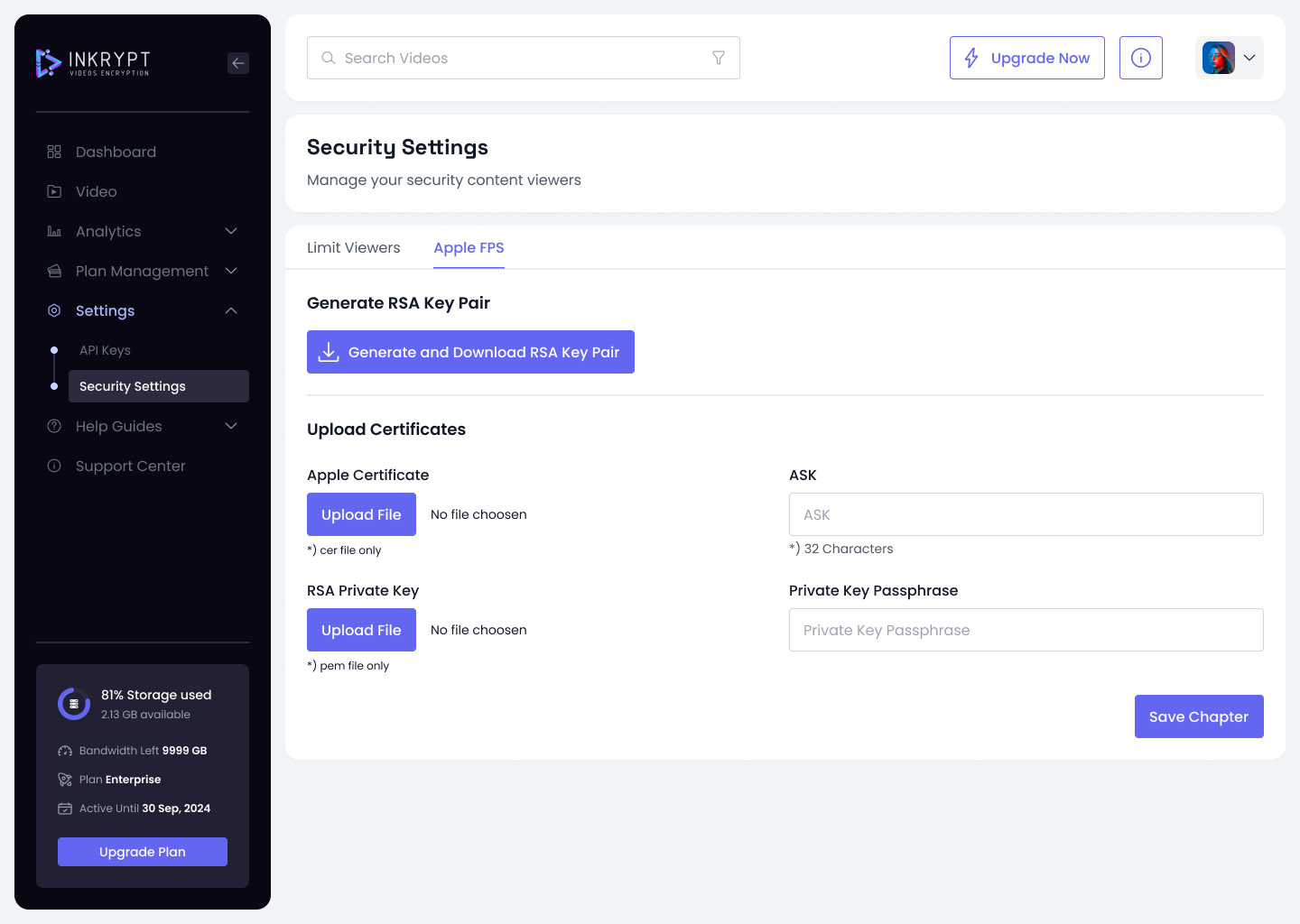
1. Generate RSA Key Pair
- Click Generate and Download RSA Key Pair to create a new RSA key pair.
- Example: After clicking, a
zip file containing a .pemfile will download to your computer. Keep this file secure, as it is essential for encrypting and decrypting your content.
2. Upload Certificates
- Apple Certificate:
Upload a.cerfile provided by Apple to authenticate your application.- Example: Click Upload File, select your
.cerfile (e.g.,app_certificate.cer), and upload it. Ensure it matches your FairPlay Streaming integration.
- Example: Click Upload File, select your
- RSA Private Key:
Upload your RSA private key in.pemformat.- Example: Click Upload File, select the private key file (e.g.,
private_key.pem), and upload it.
- Example: Click Upload File, select the private key file (e.g.,
3. ASK (Application Secret Key)
- Enter the ASK (a 32-character key provided by Apple) for FairPlay integration.
- Example: Enter a valid ASK key, such as
abc123xyz456def789ghi012klm345no, in the provided field.
4. Private Key Passphrase
- Enter the passphrase for your RSA private key if it is password-protected.
- Example: If your private key has the passphrase
securepassword123, enter it in the Private Key Passphrase field.
Save Chapter
After filling in all the required fields, click Save Chapter to apply these settings and enable Apple FPS for your videos.
Best Practices
-
Combine Restrictions:
Use hostname, country, and IP restrictions together for maximum security. For instance, allow access only fromwww.example.com, users in the United States, and IP192.168.0.1. -
Keep Certificates Secure:
Regularly update and securely store your Apple certificates and RSA private key to prevent unauthorized access. -
Test Settings:
Verify your restrictions by testing access from different countries, hostnames, and IPs.