
Introduction
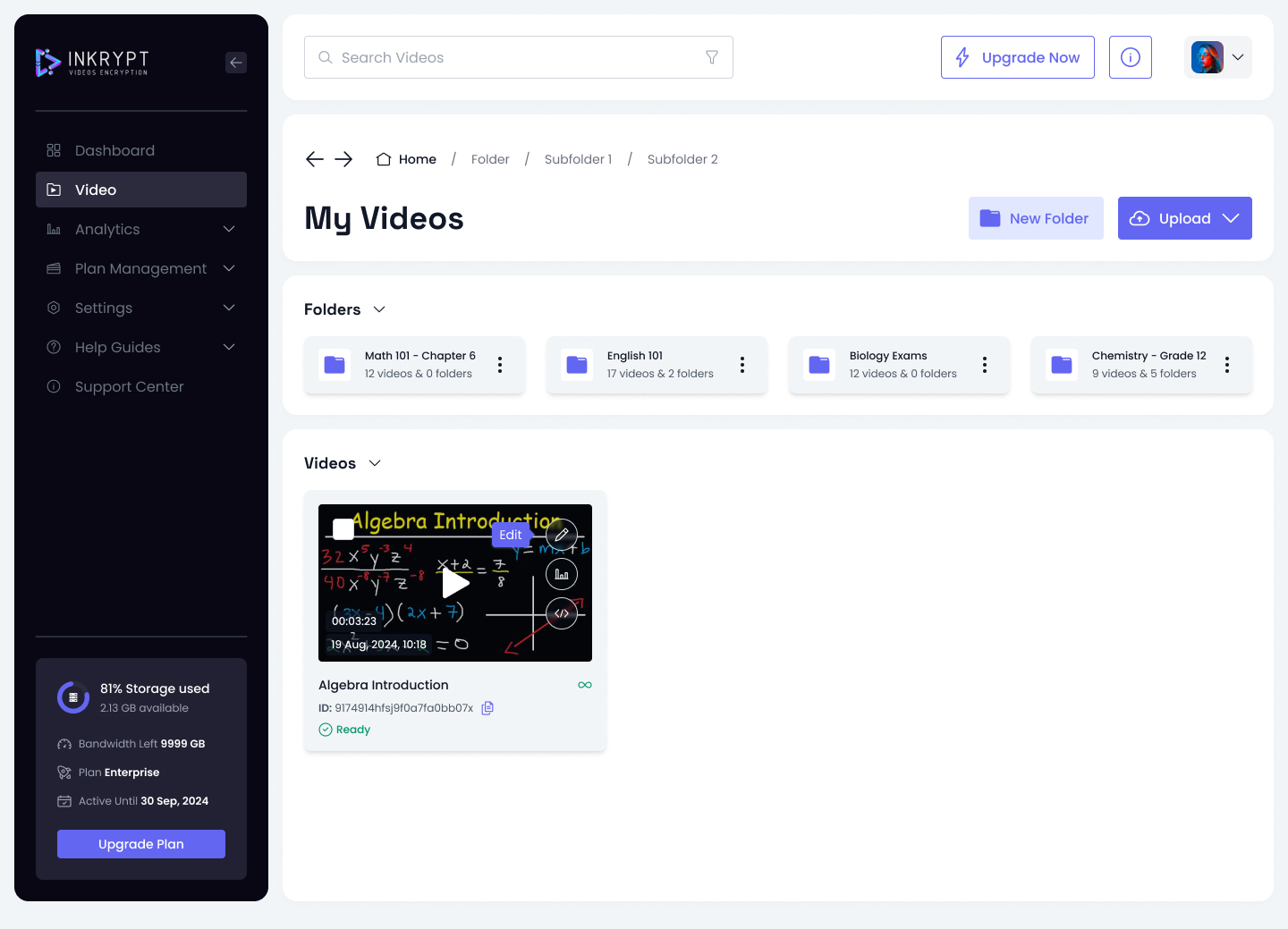
The Inkrypt Videos platform allows users to securely upload videos from multiple sources, including their PC, YouTube, and Google Drive. This guide provides step-by-step instructions for uploading videos and organizing them efficiently.
Accessing the Upload Feature and Organizing Your Videos
- Navigate to the "My Videos" Page:
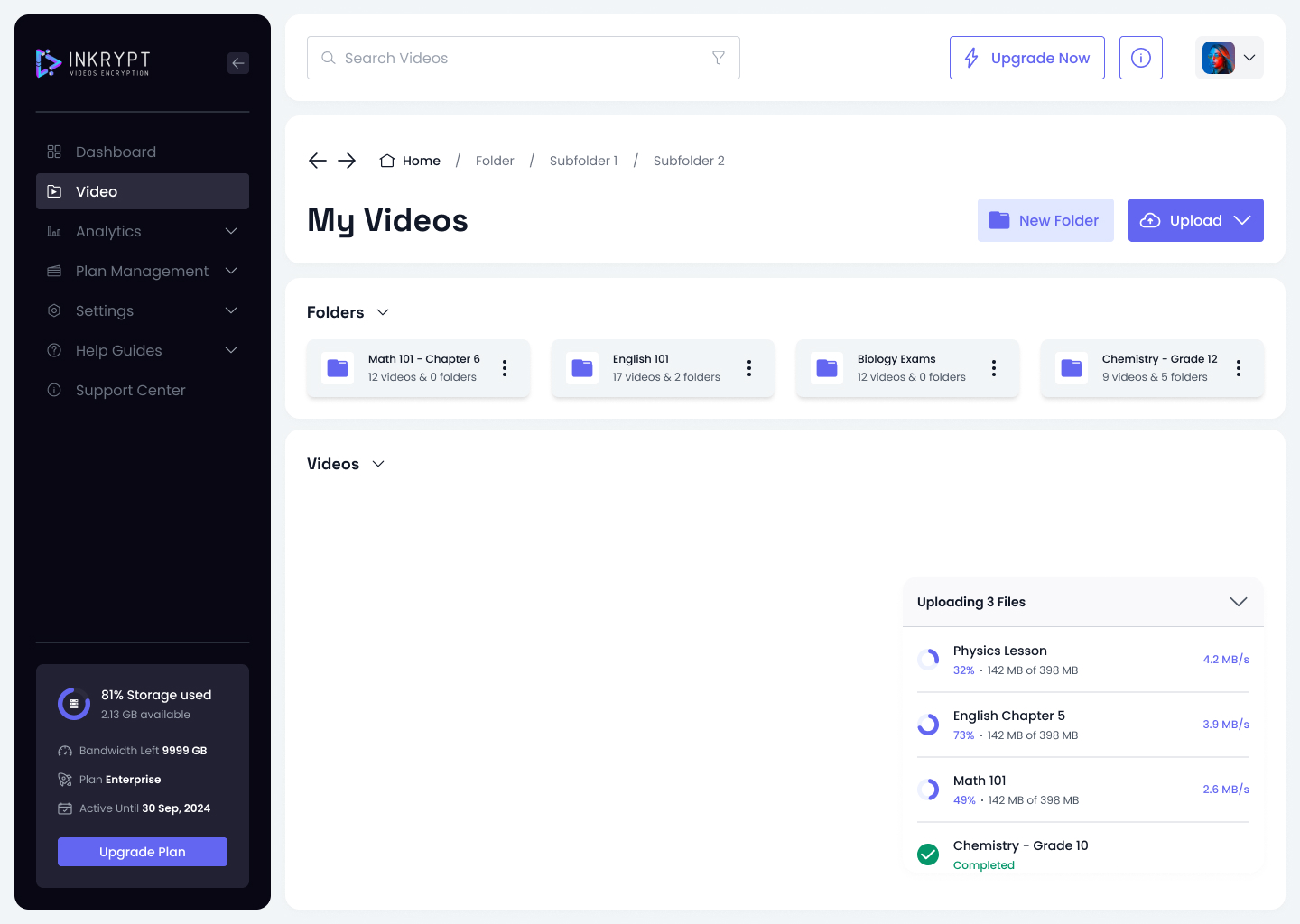
Log in to your Inkrypt Videos account, and from the dashboard, click on Video in the left-hand menu. This will take you to the "My Videos" page.

- Create Folders:
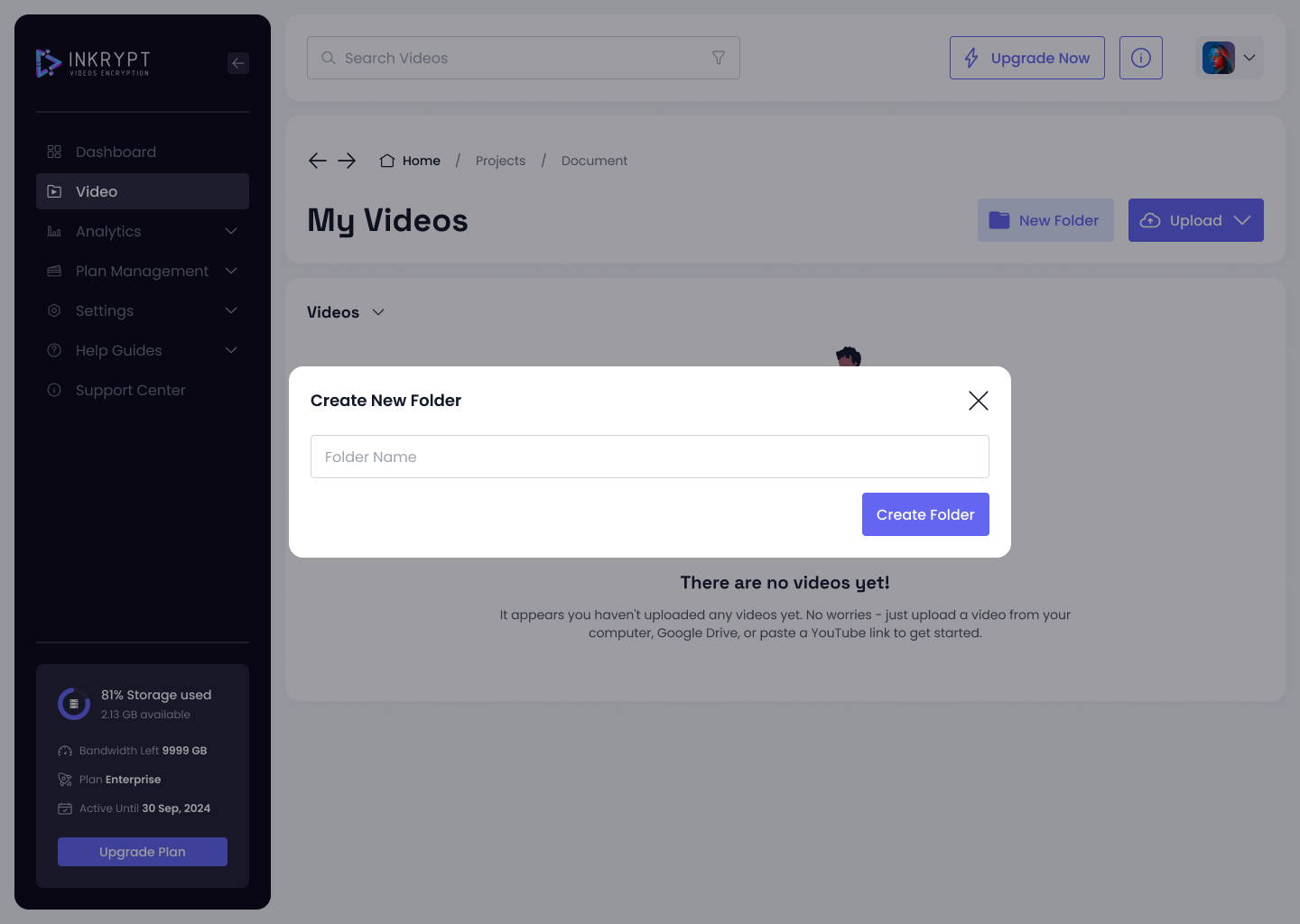
To organize your uploads, click New Folder on the top-right corner of the "My Videos" page. Enter a folder name and click Create Folder.
- View Subfolders:
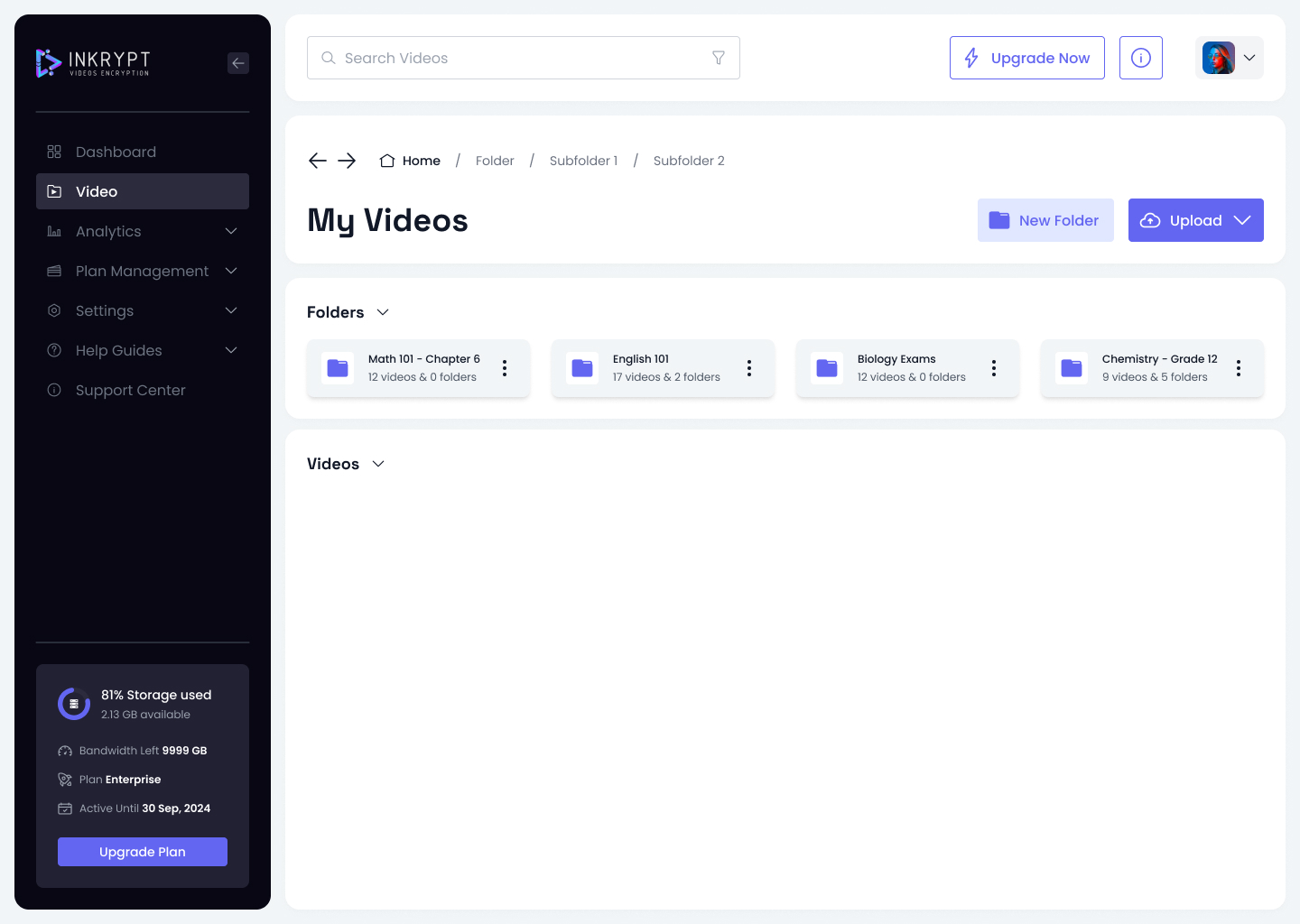
Navigate through your folders and subfolders using the breadcrumb navigation at the top of the page.
Uploading Videos
Click the Upload Button:
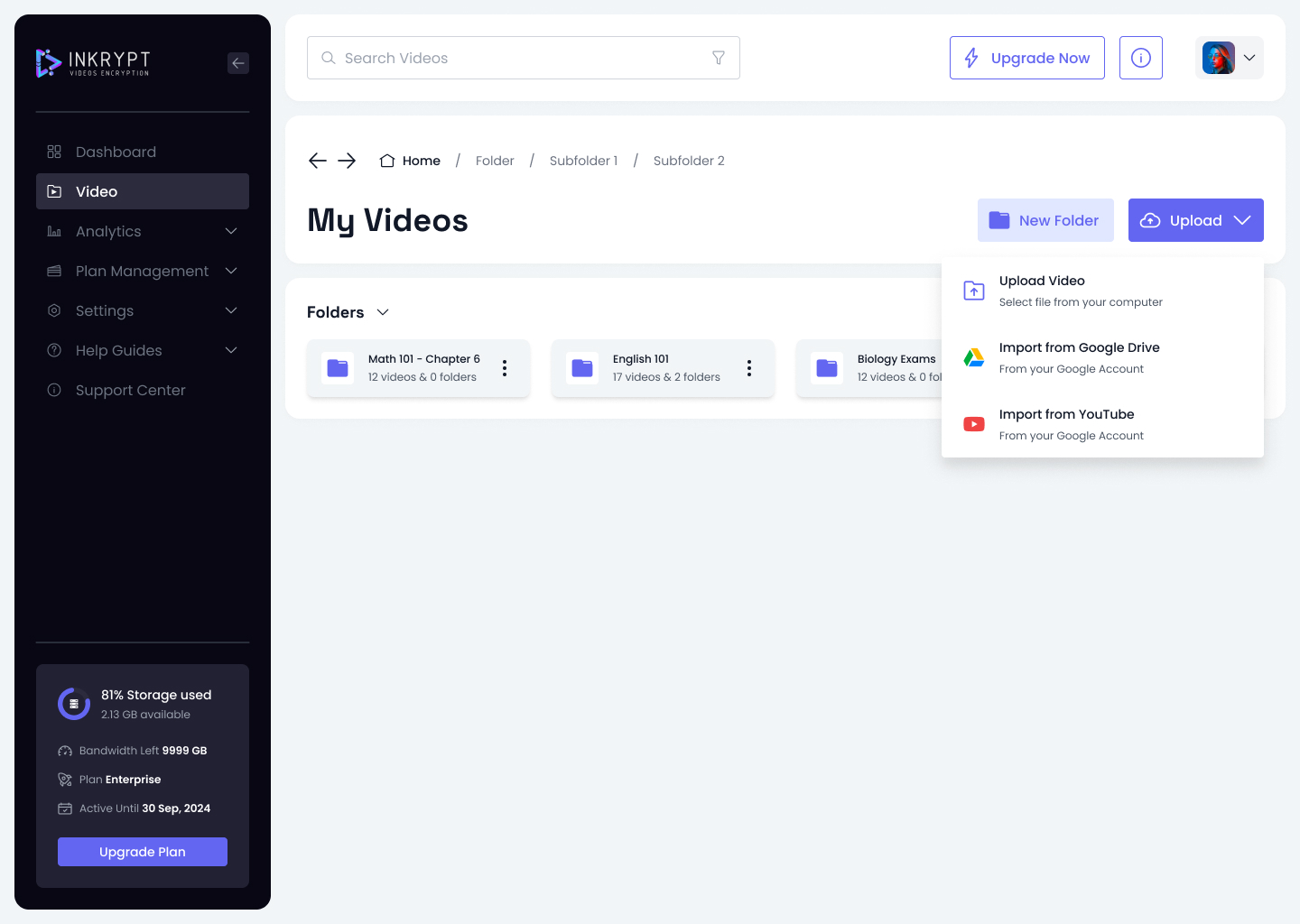
On the top-right corner of the page, locate the Upload button. Click the dropdown arrow next to it to reveal the upload options:
- Upload Video: Select a video from your PC.
- Import from Google Drive: Upload videos stored in your Google Drive account.
- Import from YouTube: Add videos by pasting a YouTube link or directly connecting to your YouTube account.
Uploading Videos from Your PC
-
Select "Upload Video":
From the Upload dropdown menu, click on Upload Video. -
Choose File:
A file browser will open. Select the video file(s) you want to upload from your computer. -
Monitor the Upload Progress:
The upload progress will be displayed on the right side of the screen. You can track the upload speed and percentage completed.
- Upload Completion:
Once uploaded, the video will appear in the "Videos" section with its status marked as Ready.