

This section allows you to define who can view your videos by setting restrictions based on hostnames, countries, or IP addresses.
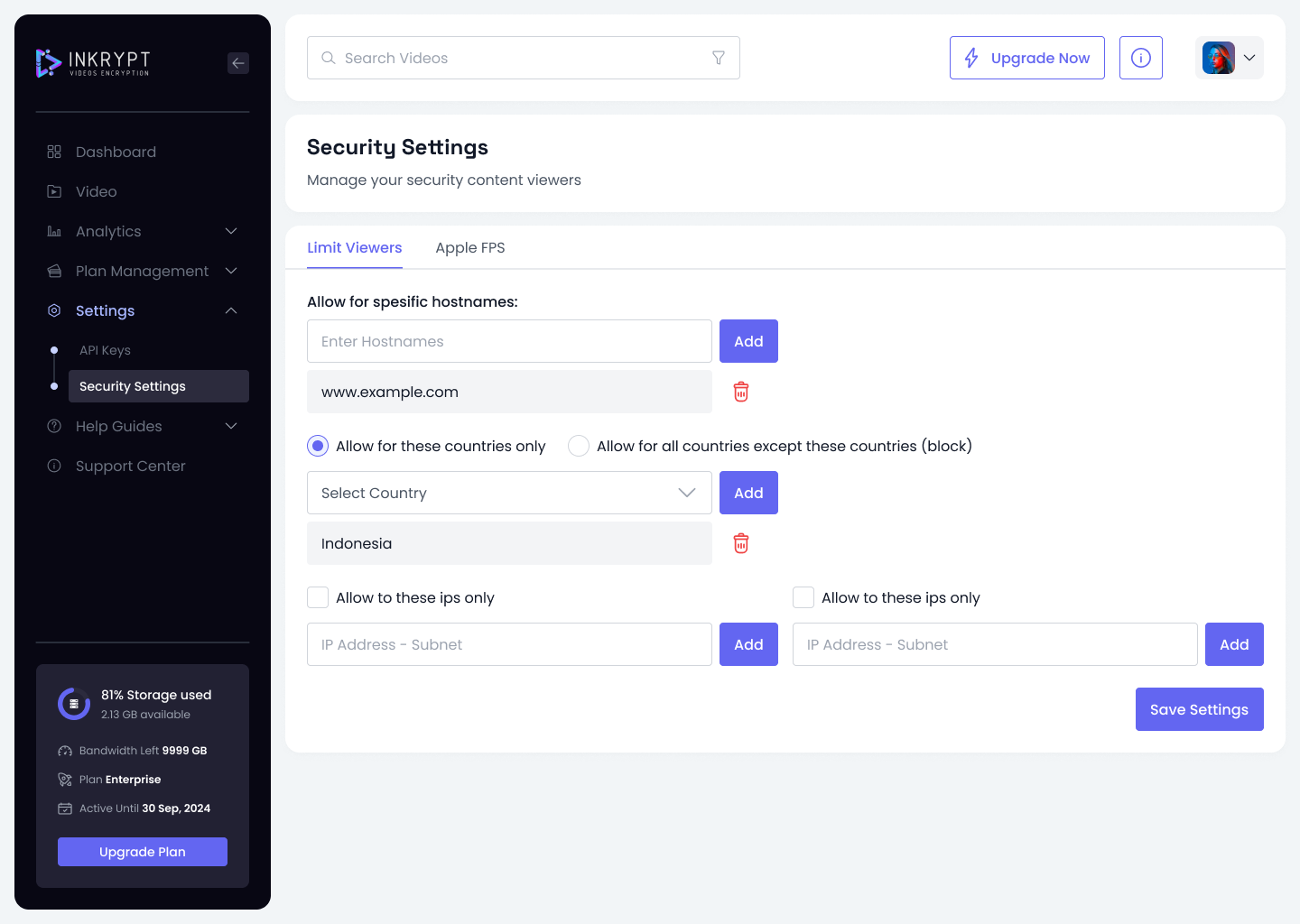
1. Allow for Specific Hostnames
- Enter specific hostnames (e.g.,
www.example.com) to allow access only to users coming from those domains. - Example:
If you want to allow access only fromwww.educationportal.com, enter the hostname in the text field and click Add. - You can add multiple hostnames by repeating the process.
- To remove a hostname, click the red trash icon next to the hostname.
2. Country-Based Restrictions
- Allow for these countries only:
Select this option to permit access exclusively from specified countries.- Example: If you only want users from the United States, Canada, UAE, Egypt, etc. to access your videos, select these countries from the dropdown and click Add.
- Allow for all countries except these countries (block):
Select this option to block access from specific countries while allowing all others.- Example: To block access from China and Russia, select these countries from the dropdown and click Add.
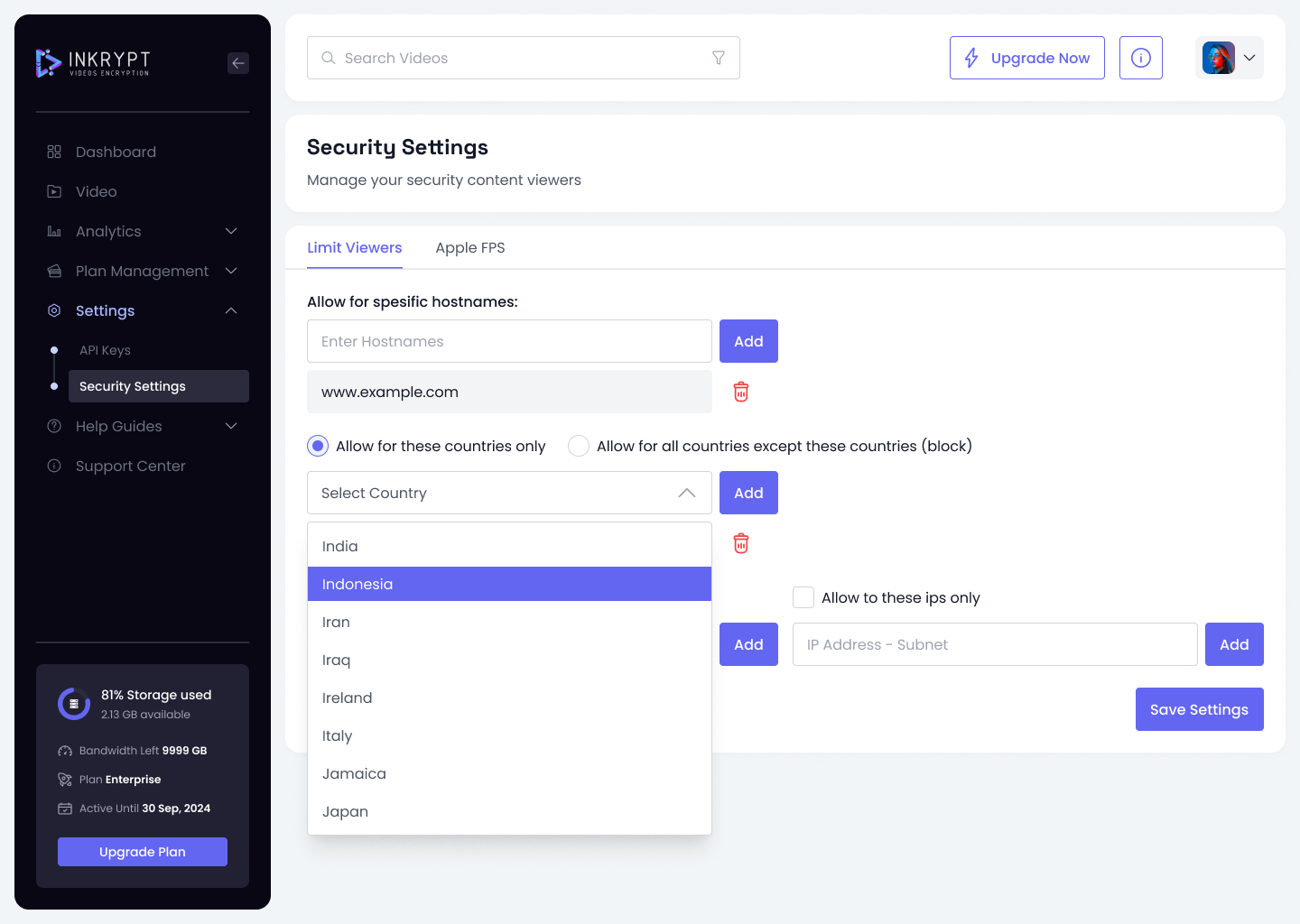
3. IP Address-Based Restrictions
- Allow to these IPs only:
Grant access exclusively to users with specific IP addresses or subnets.- Example: If you want only users from the IP
192.168.0.1to access your content, enter this IP in the text field and click Add.
- Example: If you want only users from the IP
- Block certain IPs:
Block specific IP addresses or subnets from accessing your content.- Example: To block the subnet
192.168.0.0/24, enter it in the text field and click Add.
- Example: To block the subnet
- You can add multiple IPs or subnets by repeating the process.
- To remove an IP or subnet, click the red trash icon next to the entry.
Save Settings
Once you’ve configured the hostname, country, and IP restrictions, click Save Settings to apply them. These settings ensure only authorized users can access your content.