Welcome to the InkryptVideos iOS SDK - a drop-in, DRM-protected video player with built-in watermarking, quality selection, chapter navigation, and live analytics.
This guide walks you through everything you need before writing a single line of code.
Minimum Requirements
| Requirement | Minimum Version |
|---|---|
| Xcode | 15.3 |
| Swift | 5.9+ |
| iOS Deployment Target | 16.1+ |
| Interface | SwiftUI (required) |
| macOS (development machine) | Sonoma 14.5+ |
Why iOS 16.1?
The SDK uses modern AVFoundation APIs for FairPlay DRM streaming. These APIs require iOS 16.1 as the minimum supported OS version.Why SwiftUI?
The player view (InkryptVideoPlayerView) is a native SwiftUIView. It can be embedded into UIKit-based apps usingUIHostingController- see Basic Usage → UIKit Integration - but SwiftUI must be available in your project.
Tools You Will Need
1. Xcode
Xcode is Apple's official IDE for iOS development. You must have version 15.3 or later.
Download it from one of these sources:
- Mac App Store (recommended - handles updates automatically)
- Apple Developer Downloads at developer.apple.com/download
After installation, open Xcode at least once to complete the initial component setup. Xcode will prompt you to install additional components - click Install and wait for it to finish.
2. Xcode Command Line Tools
The Command Line Tools package is required for building Swift projects from the terminal and for certain Xcode integrations.
Open Terminal and run:
xcode-select --install
A system dialog will appear. Click Install and wait for the download to complete.
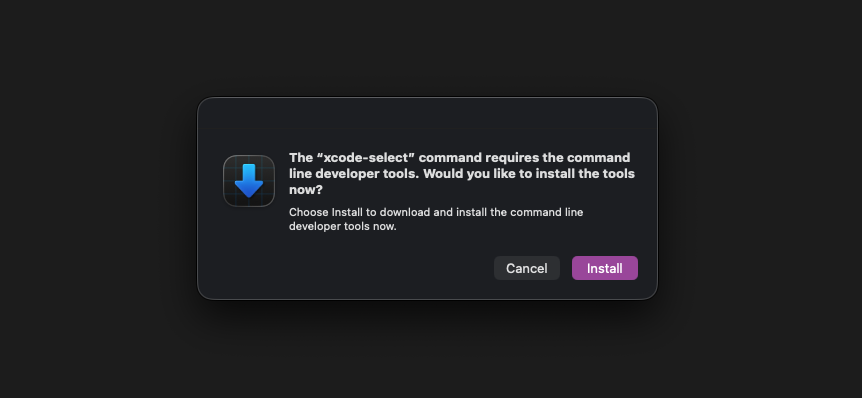
Verify it installed correctly:
xcode-select -p
You should see output like /Applications/Xcode.app/Contents/Developer. If you see this path, you're good to go.
3. Apple Developer Account
To run your app on a physical device (required for FairPlay DRM video playback), you need an Apple Developer account linked to Xcode.
Important: FairPlay DRM, the content protection system used by the SDK, only works on real devices. The iOS Simulator does not support FairPlay. You must have a physical iPhone or iPad to test video playback.
Sign in to Xcode:
-
Open Xcode
-
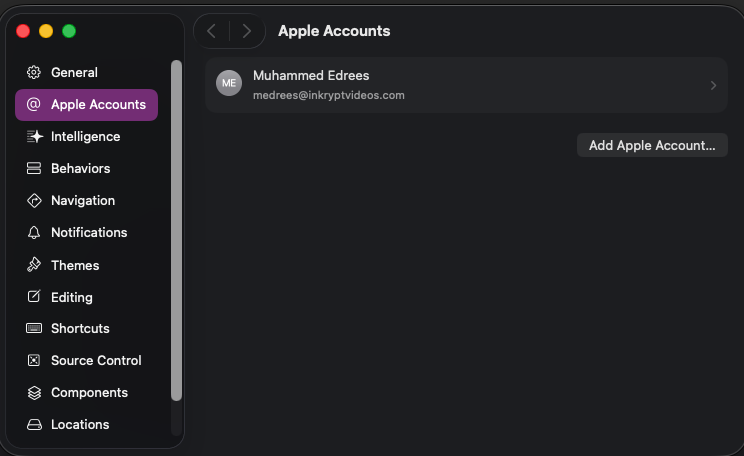
From the menu bar, choose Xcode → Settings… (or Xcode → Preferences… on older versions)
-
Click the Accounts tab
-
Click the Add Account button in the bottom-left corner
-
Select Apple ID and click Continue
-
Enter your Apple ID and password
A free Apple ID is sufficient for development and testing on your own device. A paid Apple Developer Program membership ($99/year) is required to distribute the app via TestFlight or the App Store.
4. A Physical iOS Device
Because FairPlay DRM is required to decrypt and play videos, you must test on a real iPhone or iPad.
Requirements for the device:
- Runs iOS 16.1 or later
- Is trusted by your Mac (when you first connect, tap Trust on the device)
How to connect:
- Plug the device into your Mac using a USB or USB-C cable
- Unlock the device
- If prompted on the device, tap Trust This Computer and enter your passcode
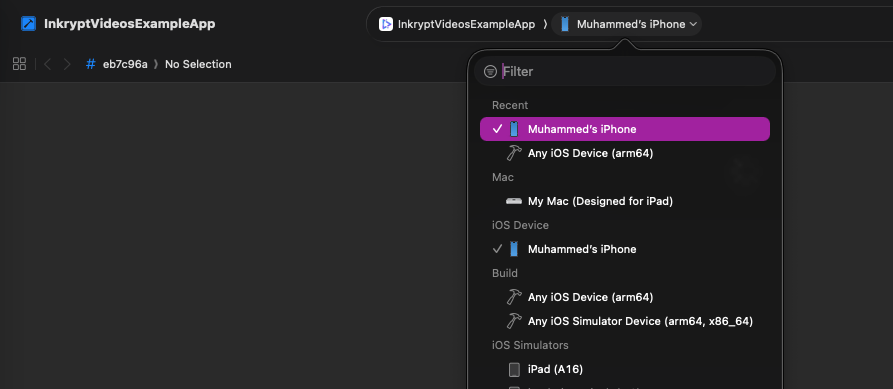
Once connected, the device will appear in Xcode's device selector at the top of the window.