The InkryptVideos SDK is distributed as a pre-compiled XCFramework (.xcframework). This binary format bundles code for all supported architectures (physical devices and Simulator) into a single package, with no third-party dependencies.
Integration Methods
| Method | Status |
|---|---|
| Swift Package Manager (SPM) | ✅ Supported (Recommended) |
| Manual XCFramework | ✅ Supported |
The recommended path is Swift Package Manager, Xcode downloads, checksum-verifies, links, and embeds the framework for you, and pins a known-good version. The Manual XCFramework method remains available if you prefer to vendor the binary yourself.
Swift Package Manager (Recommended)
The SDK is published as a binary Swift package. Xcode handles downloading the .xcframework, verifying its checksum, linking, and embedding, there is nothing to drag in manually.
Step 1: Add the Package Dependency
-
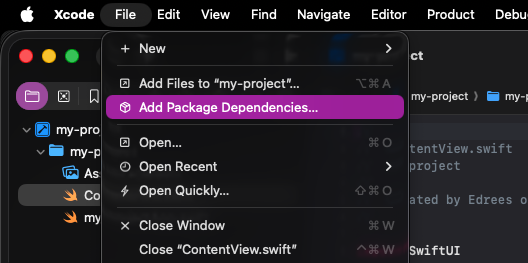
In Xcode, choose File → Add Package Dependencies…
-
In the search field (top-right), paste the package URL:
https://github.com/medrees-ink/inkryptvideos-ios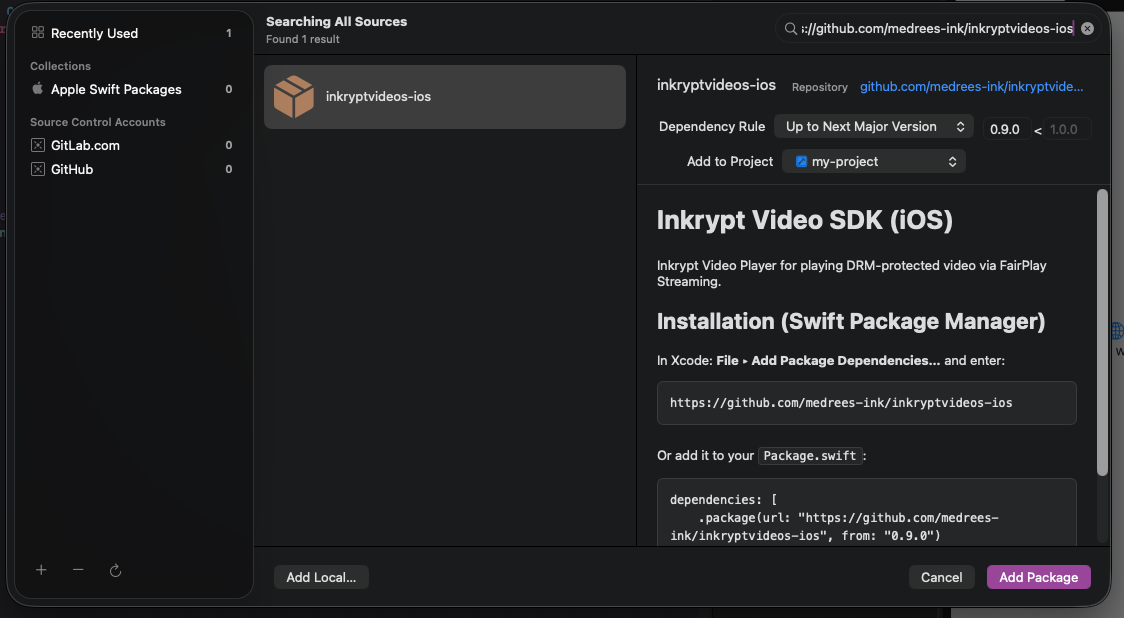
-
Set the Dependency Rule to Up to Next Major Version, starting at
0.9.0. -
Click Add Package.
-
When prompted, add the InkryptVideos library product to your app target, then click Add Package again.
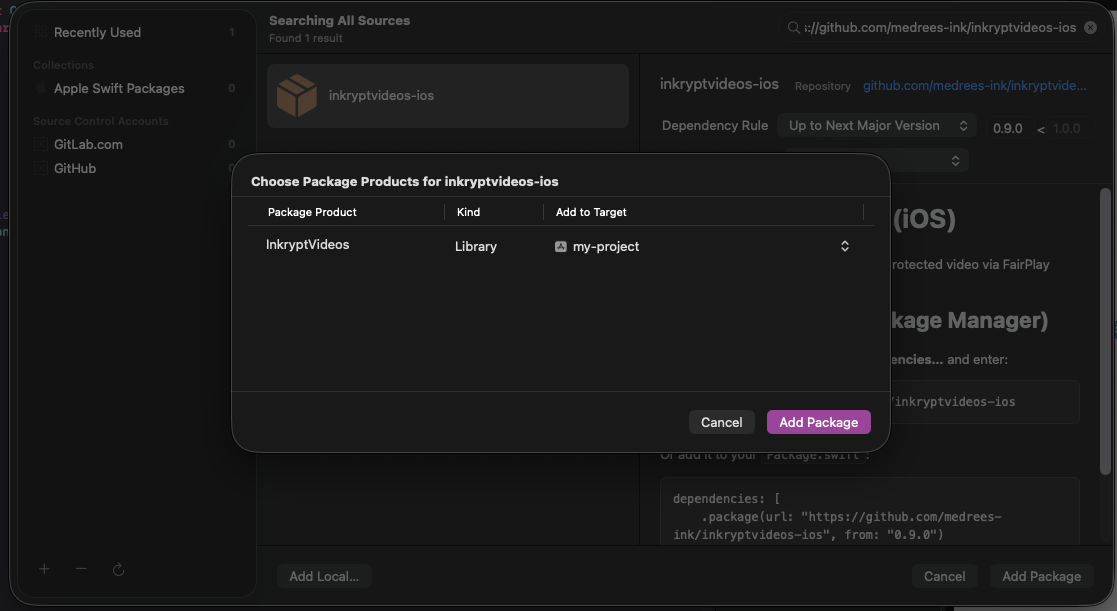
Xcode resolves the package, downloads the binary, and verifies its checksum automatically.
Adding it via
Package.swift(for SPM-based projects):dependencies: [ .package(url: "https://github.com/medrees-ink/inkryptvideos-ios", from: "0.9.0") ], targets: [ .target( name: "YourApp", dependencies: [ .product(name: "InkryptVideos", package: "inkryptvideos-ios") ] ) ]
Step 2: Set Your iOS Deployment Target
The SDK requires iOS 16.1 or later. In your target's General tab → Minimum Deployments, set iOS to 16.1 or higher.
Step 3: Configure Code Signing
Ensure your app target has a valid development team under Signing & Capabilities (Automatically manage signing checked). The binary is embedded and re-signed with your team's identity automatically, there is no separate embed step to configure.
Step 4: Import and Build
In any Swift file where you use the player:
import InkryptVideos
Build on a physical iOS device (FairPlay DRM does not work on the Simulator). If the build succeeds, you are ready to display the player, continue to Basic Usage.
Updating to a New Version
In Xcode, choose File → Packages → Update to Latest Package Versions, or change the version rule under your target's Package Dependencies. SPM re-verifies the checksum on every resolve, so a tampered or corrupted download fails fast.
Manual XCFramework Integration
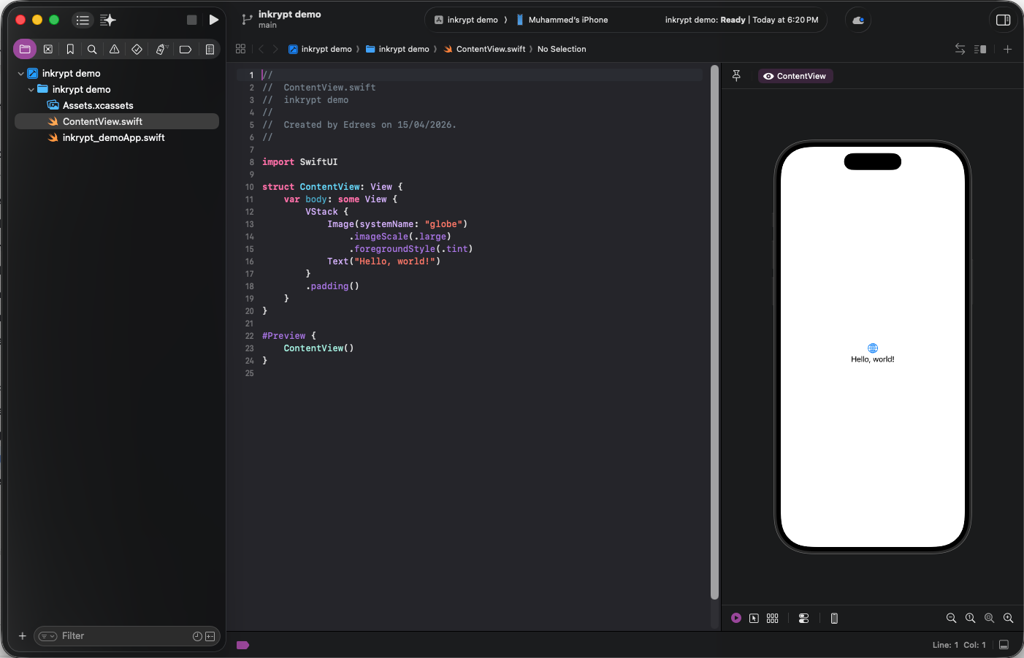
This section walks through every step needed to go from a blank Xcode project to a working SDK integration.
Step 1: Create a New Xcode Project
If you are adding the SDK to an existing project, skip to Step 2.
-
Open Xcode
-
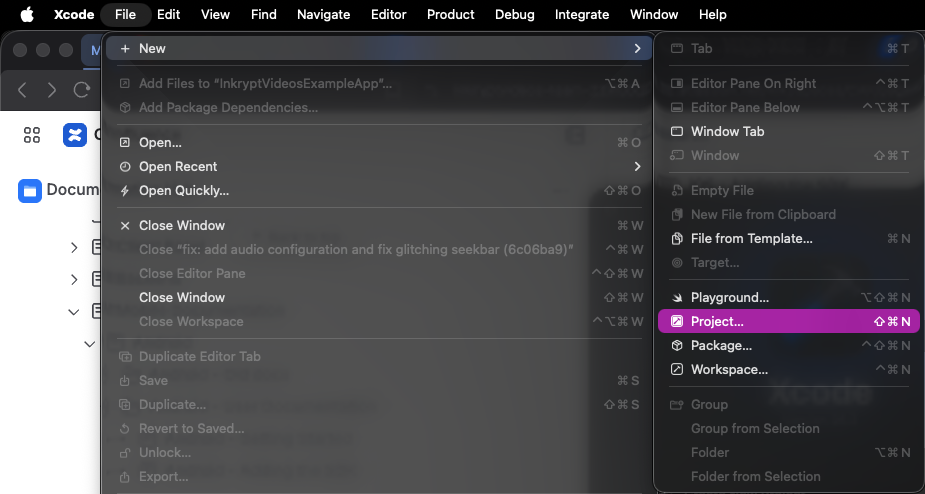
From the menu bar, choose File → New → Project…
-
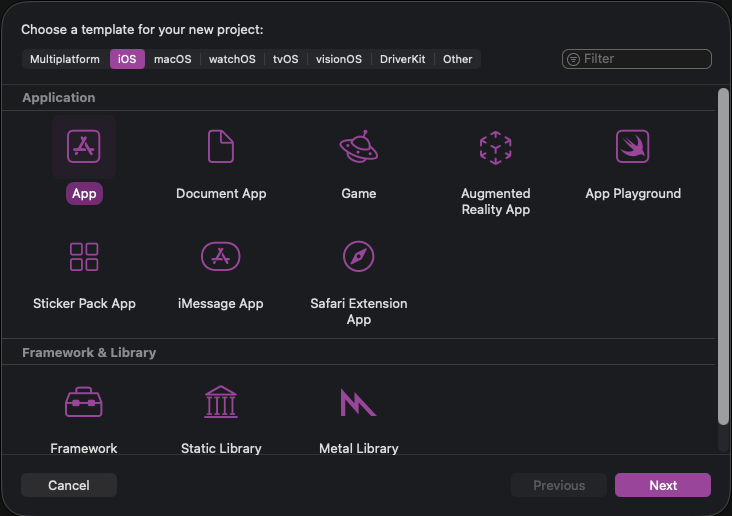
The template chooser will open. Make sure the iOS tab is selected at the top, then choose App and click Next"
-
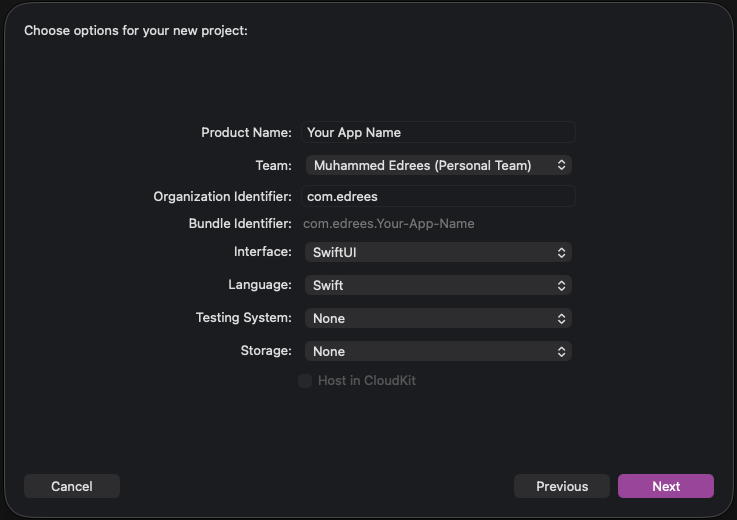
Fill in your project options:
-
Click Next, choose where to save the project, and click Create
Your new project will open in Xcode.
Step 2: Download the SDK
Download the latest InkryptVideos.xcframework from the InkryptVideos releases page.
Once downloaded and unzipped (if necessary), you will have a file named InkryptVideos.xcframework.
What is an XCFramework?
On disk, it looks like a folder (you can right-click it and select "Show Package Contents"), but Xcode treats it as a compiled framework bundle. Do not rename or modify its contents.
Step 3: Add the Framework to Your Project
There are two ways to add the framework. Both produce identical results - use whichever you prefer.
Option A: Drag into the General Tab (Recommended)
This method is the clearest for first-time integrations because it takes you directly to the right setting.
-
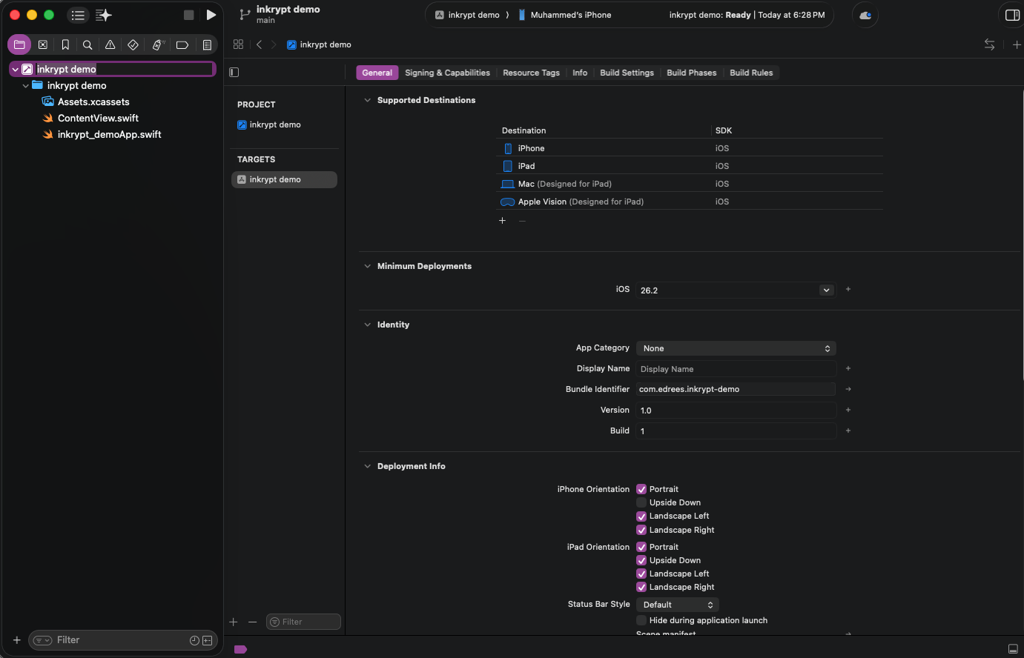
In the Project Navigator (left sidebar), click your project name - the blue icon at the very top
-
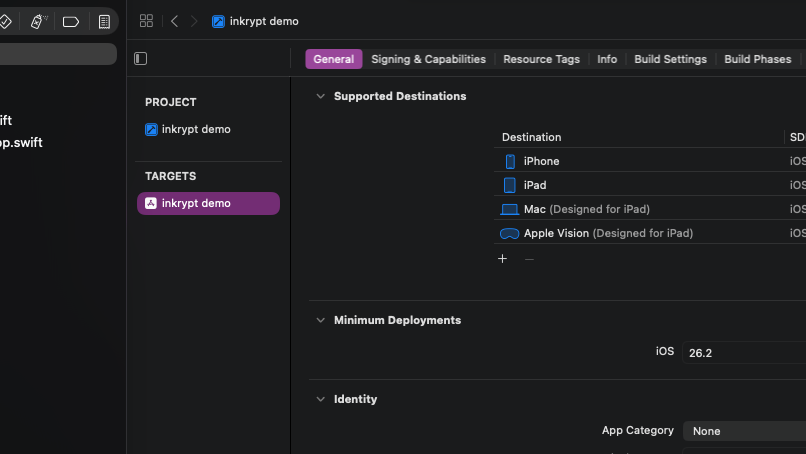
Under the TARGETS list on the left side of the editor, click your app target
-
Click the General tab at the top of the editor
-
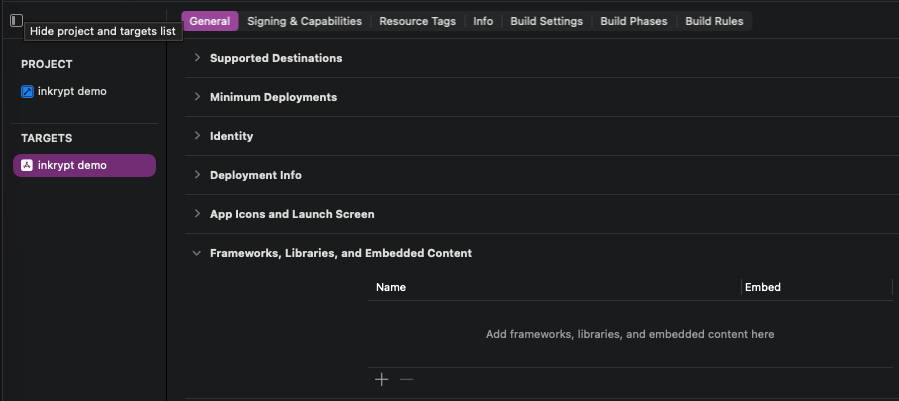
Scroll down to the Frameworks, Libraries, and Embedded Content section
-
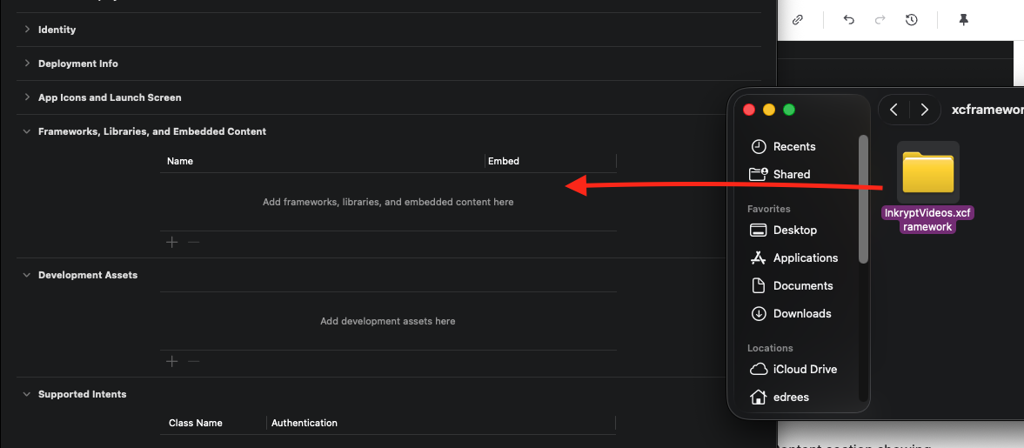
Open Finder, locate
InkryptVideos.xcframework, and drag it directly into the Frameworks, Libraries, and Embedded Content list in Xcode
-
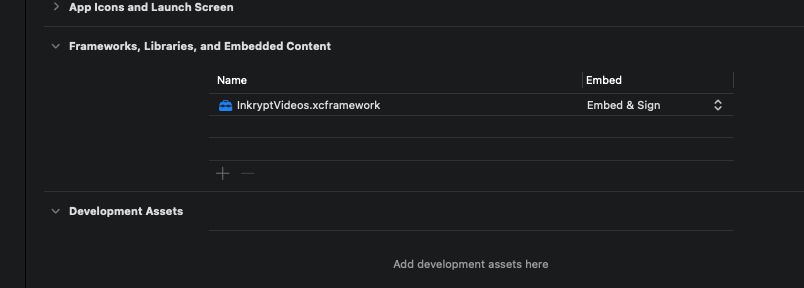
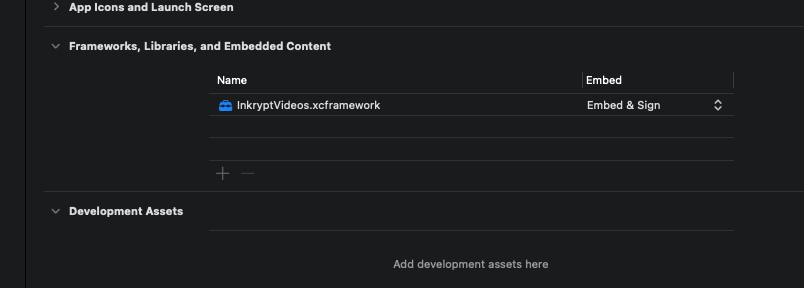
The framework now appears in the list. In the Embed column (on the right), make sure it is set to Embed & Sign
Why "Embed & Sign"?
The XCFramework contains compiled binary code that must be:
- Embedded - bundled inside your
.appso it can be found at runtime- Signed - code-signed with your developer certificate for App Store and device distribution
Using Do Not Embed means the framework will be missing at runtime, causing a crash. Using Embed without Sign will cause code signing validation to fail during archive/distribution.
Option B: Drag into the Project Navigator
This method is faster once you are familiar with the project structure.
- In the Project Navigator, locate or create a Frameworks group to keep things organized
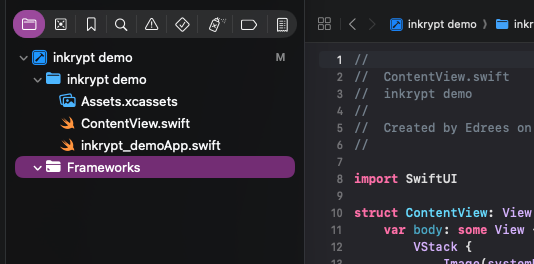
To create a group: right-click anywhere in the Project Navigator and choose New Group. Name it
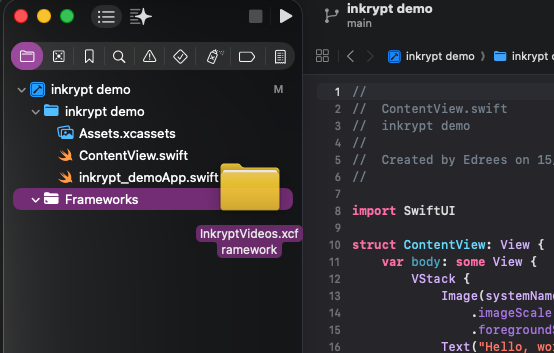
Frameworks. - Drag
InkryptVideos.xcframeworkfrom Finder into the Frameworks group in the Project Navigator
- A confirmation dialog will appear. Make sure:
- ✅ Copy items if needed is checked — this copies the framework into your project folder so it is self-contained
- ✅ Your app target is checked under Add to targets
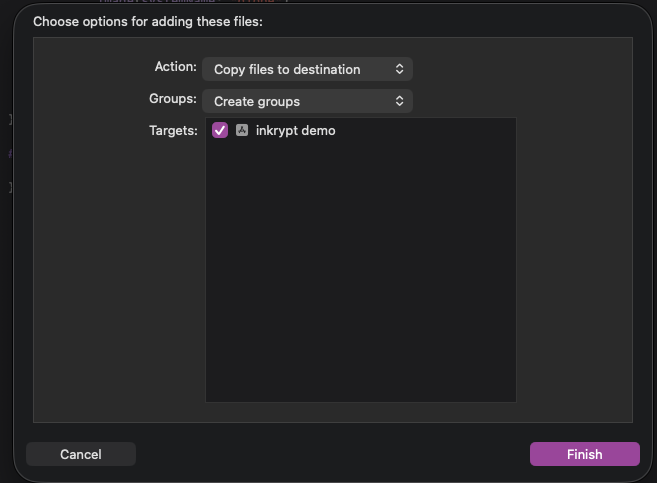
- Click Finish
- Verify the embed setting: Go to your target's General tab → Frameworks, Libraries, and Embedded Content and confirm
InkryptVideos.xcframeworkis set to Embed & Sign
Step 4: Set Your iOS Deployment Target
The SDK requires iOS 16.1 or later. Check and set the deployment target now to avoid build errors later.
- Click your project name in the Project Navigator
- Under TARGETS, select your app target
- Go to the General tab
- Under Minimum Deployments, find the iOS row
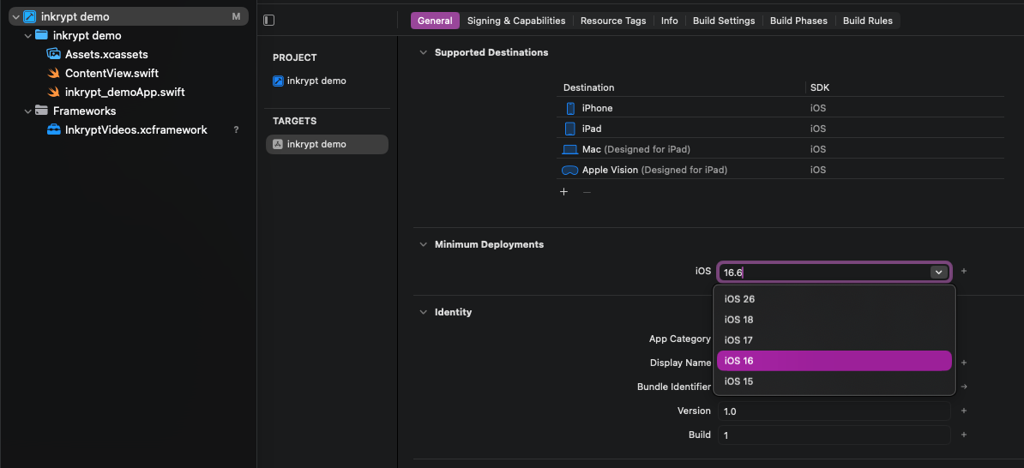
- If the value is lower than 16.1, click the dropdown and select 16.1
Step 5: Configure Code Signing
The SDK is a signed binary. Your app needs a valid development team to link and run correctly.
- In your target settings, click the Signing & Capabilities tab
- Make sure Automatically manage signing is checked
- Select your Team from the dropdown
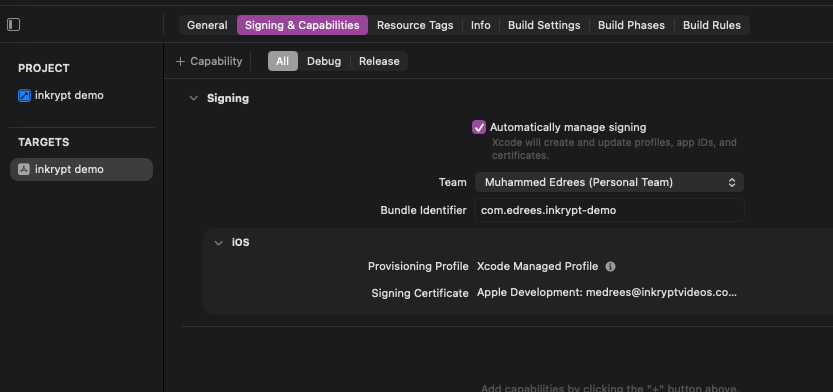
If you see a red banner saying "No account for team...", click the Team dropdown and select your Apple ID. If no accounts appear, return to Getting Started and sign in to Xcode under Settings → Accounts.
Step 6: Build to Verify
Run a build to confirm the framework is linked and embedded correctly.
- Select a physical iOS device from the device selector at the top of Xcode (not the Simulator)
Open
- Press ⌘ B (or go to Product → Build)
If the build succeeds, the framework is correctly integrated. You are ready to write code.
If you see errors, refer to Troubleshooting below.
Step 7: Import the SDK
In any Swift file where you want to use the player, add the import statement at the top:
import InkryptVideos
Troubleshooting
SPM: "the checksum … does not match"
Cause: The downloaded binary does not match the checksum pinned in the package, or a cached download is stale.
Fix: In Xcode, File → Packages → Reset Package Caches, then resolve again. If it persists, you may be pinned to a version whose release asset was re-uploaded, update to the latest version.
SPM: package fails to resolve / download
Cause: Network access to the GitHub release asset is blocked, or the version rule points at a tag that does not exist.
Fix: Confirm the version exists on the releases page and that your environment can reach github.com. For air-gapped setups, use the Manual XCFramework method instead.
"Framework not found" or linker error
Cause: The framework is in the project but not linked.
Fix: Open your target's General tab → Frameworks, Libraries, and Embedded Content and confirm InkryptVideos.xcframework appears there. If it is missing, repeat Step 3.
"dyld: Library not loaded" crash at runtime
Cause: The framework is linked but not embedded.
Fix: In Frameworks, Libraries, and Embedded Content, change the Embed setting from Do Not Embed to Embed & Sign.
Code signing errors
Cause: No valid development team is set.
Fix: Go to Signing & Capabilities and select your team. If you do not have a team, sign in to Xcode under Xcode → Settings → Accounts.
Build works but video does not play
Cause: You are running on the iOS Simulator, which does not support FairPlay DRM.
Fix: Always run on a physical device when testing video playback.
"Embed & Sign" causes code signing error during Archive
Cause: The framework's signature does not match your certificate.
Fix: Ensure you downloaded the official InkryptVideos.xcframework from the InkryptVideos releases page. Re-download and replace if the file was modified.