

This guide will walk you through resetting your password in just a few quick steps. Whether you’ve forgotten your current password or simply want to secure your account with a new one, we’ve got you covered.
How to reset your password
- Go to the Reset Password page: From the login screen, click “Forgot Password?” or head directly to the reset page.
- Enter your registered email address: Provide the email you used to create your Inkrypt Videos account, then click Submit.
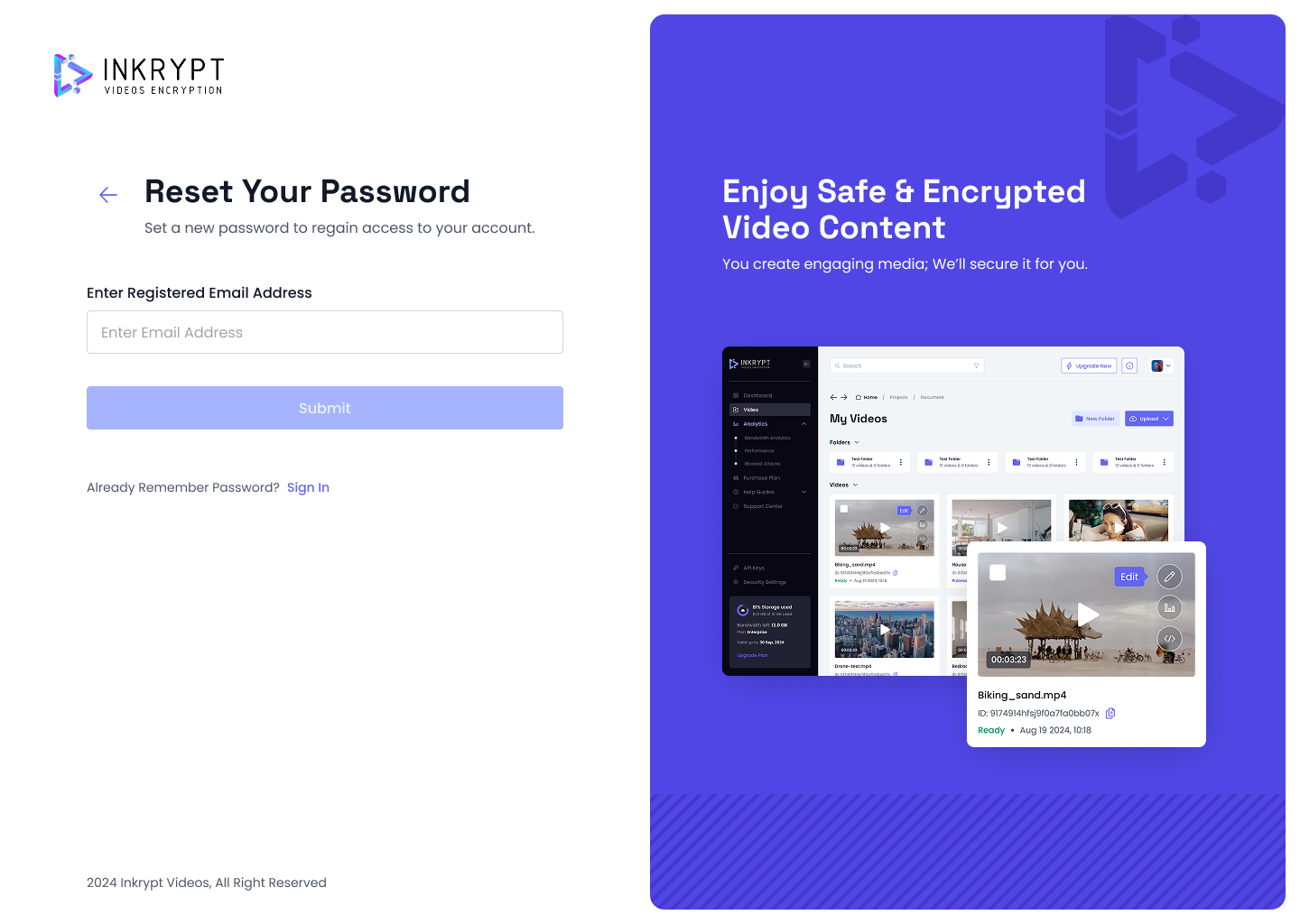
- Check your inbox (if required): Depending on your account settings, you may receive a confirmation email. Click the link in the email to proceed.
- Create a new password: On the reset form, enter your new password and confirm it.
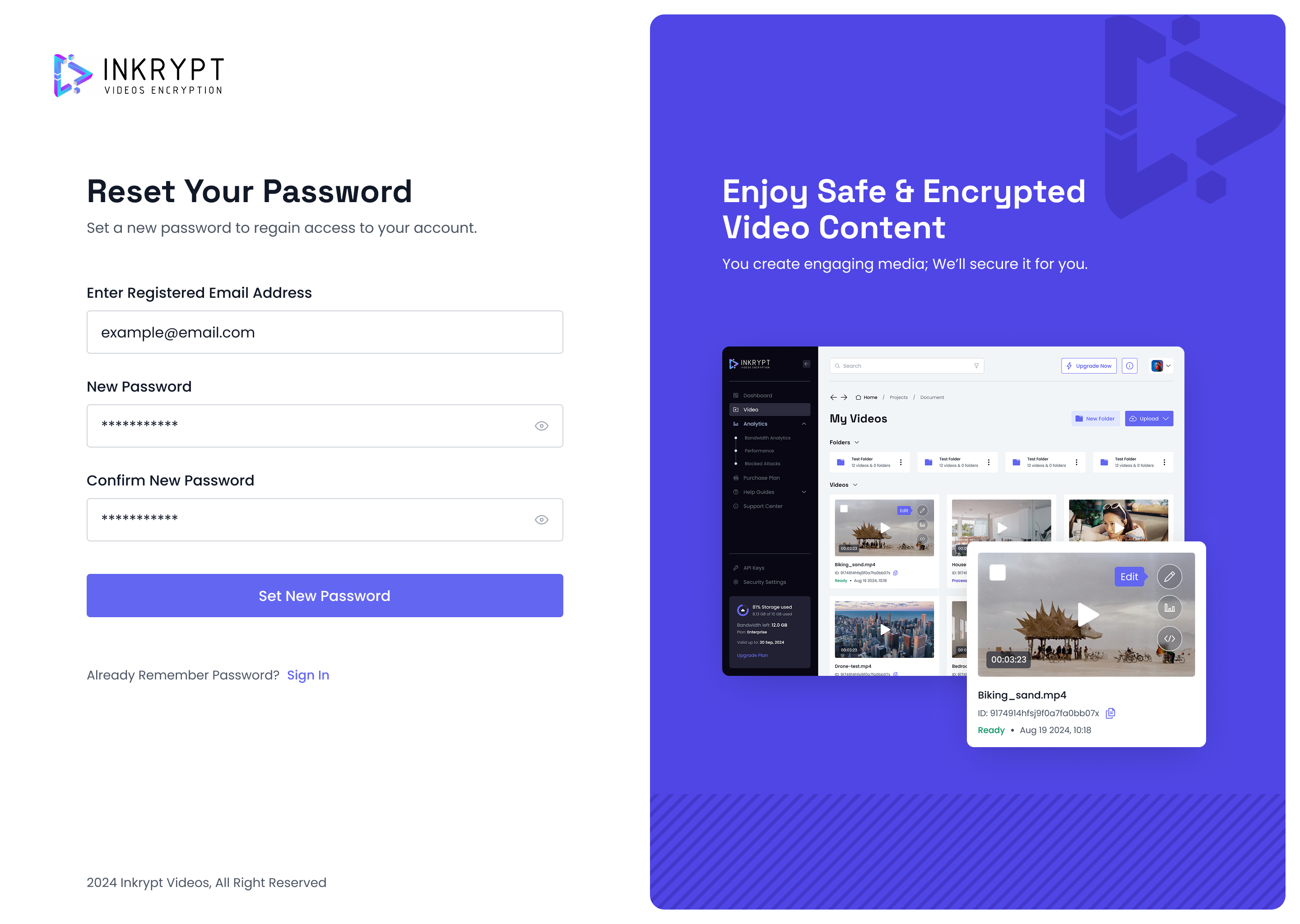
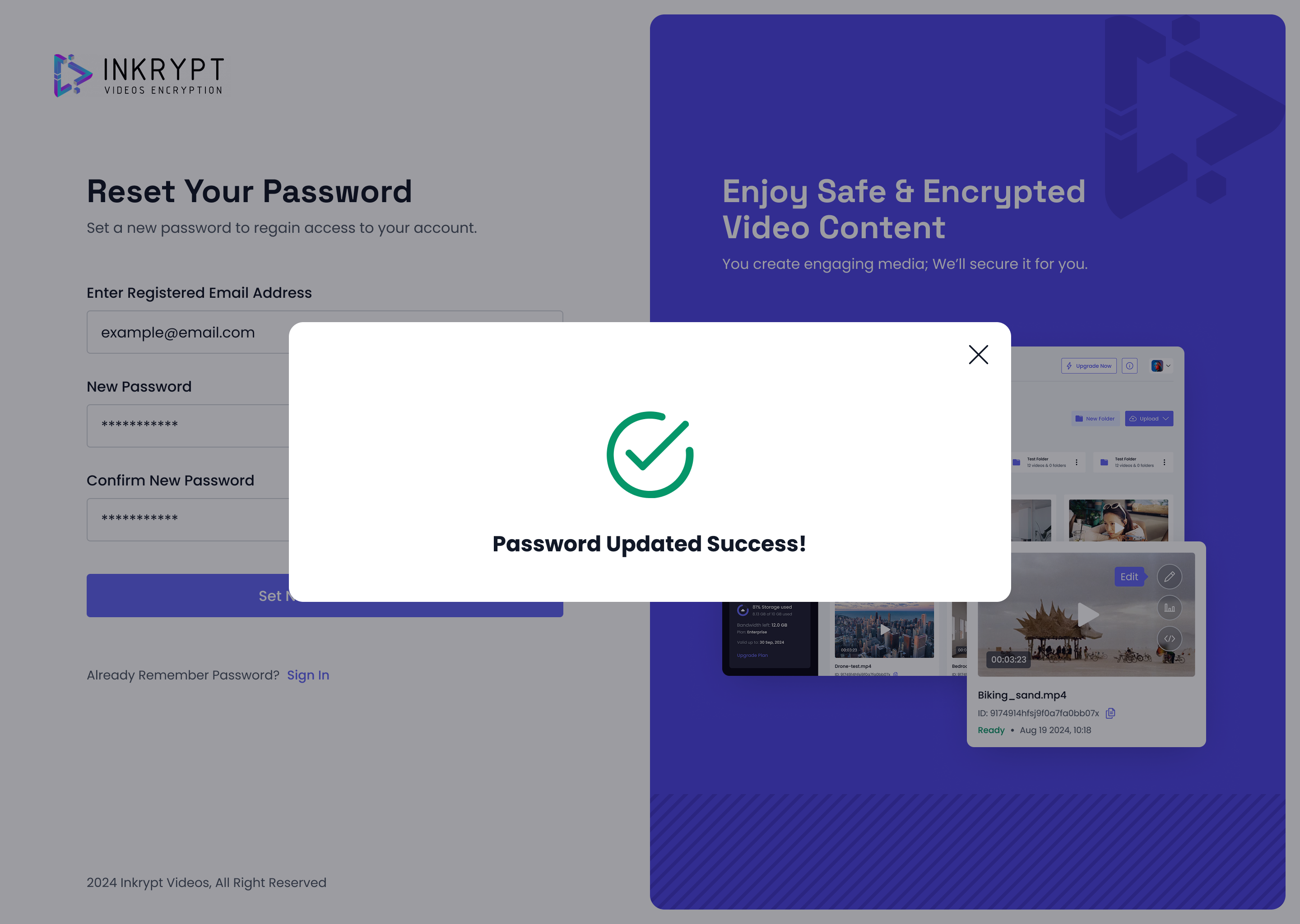
- Click “Set New Password”: That’s it! If everything looks good, you’ll see a success message confirming your password has been updated.
Troubleshooting
-
Didn’t receive a reset email?
- Double-check your spam or junk folder.
- Confirm you entered the correct email address.
- Try requesting another password reset.
-
Still having issues?
- Contact Inkrypt Videos support at [email protected] for additional help.
That’s it!
You’ve successfully updated your password. Now you can log back into your Inkrypt Videos account using your new credentials. If you have any further questions, be sure to check out our other knowledge base articles or reach out to our support team.
© 2025 Inkrypt Videos. All Rights Reserved.